Expose a Local Service with Cloudflare Tunnel

Expose a Local Service with Cloudflare Tunnel

Expose a service running on your local machine to a remote server without opening any ports. For instance, let your OpenClaw agent (the remote server) access qBittorrent Web UI on your Mac (the local machine), to download a movie for you.

The local machine makes an outbound-only connection to Cloudflare. The remote server hits your subdomain on Cloudflare's edge. Traffic flows:

OpenClaw on your remote server -> https://your-tunnel-name.example.com -> Cloudflare edge servers -> Cloudflare Tunnel -> qBittorrent Web UI on your local machine

You can probably do the same thing with Tailscale, but unfortunately, Tailscale app doesn't work well with Mullvad VPN on macOS (and I don't want to use Tailscale's Mullvad VPN add-on).

ref:
https://developers.cloudflare.com/cloudflare-one/networks/connectors/cloudflare-tunnel/
https://tailscale.com/docs/features/exit-nodes/mullvad-exit-nodes

Setup

1. Create Cloudflare Tunnel

Do this from any device where you're logged into Cloudflare. No login needed on the local machine or the remote server.

  1. Go to Cloudflare Zero Trust dashboard
  2. Networks -> Connectors -> Create a tunnel -> Cloudflared
    • Name your tunnel: your-tunnel-name
  3. Copy the tunnel token
  4. Configure the tunnel you just created -> Published application routes -> Add a published application route
    • Subdomain: your-tunnel-name
    • Domain: select your domain from the dropdown (e.g., example.com)
    • Path: [leave empty]
    • Service:
      • Type: HTTP
      • URL: localhost:8080
  5. After you create the published application route, Cloudflare will automatically create the DNS record for your subdomain

ref:
https://developers.cloudflare.com/cloudflare-one/networks/connectors/cloudflare-tunnel/get-started/tunnel-useful-terms/
https://developers.cloudflare.com/cloudflare-one/networks/routes/add-routes/

2. Access Controls for Cloudflare Tunnel

Still in the Cloudflare Zero Trust dashboard.

  1. Access controls -> Service credentials -> Service Tokens -> Create Service Token
    • Token name: your-token-name
    • Service Token Duration: Non-expiring
    • Save the CF-Access-Client-Id and CF-Access-Client-Secret (shown only once)
  2. Access controls -> Policies -> Add a policy
    • Policy name: your-policy-name
    • Action: Service Auth
    • Session duration: 24 hours
    • Configure rules -> Include:
      • Selector: Service Token
      • Value: select the service token you just created (e.g., your-token-name)
  3. Access controls -> Applications -> Add an application -> Self-hosted
    • Application name: your-tunnel-name
    • Session Duration: 24 hours
    • Add public hostname:
      • Input method: Default
      • Subdomain: your-tunnel-name (must match the subdomain in step 1.4)
      • Domain: select your domain from the dropdown (e.g., example.com)
      • Path: [leave empty]
    • Select existing policies (this text is a clickable button, not a label!)
      • Check the policy you created in step 2.2

ref:
https://developers.cloudflare.com/cloudflare-one/access-controls/service-credentials/service-tokens/
https://developers.cloudflare.com/cloudflare-one/access-controls/policies/
https://developers.cloudflare.com/cloudflare-one/access-controls/applications/http-apps/

3. Run cloudflared on Local Machine (macOS)

Make cloudflared run on boot, connecting outbound to Cloudflare. No browser auth ever needed.

brew install cloudflared

# install as a LaunchAgent using the tunnel token from step 1
sudo cloudflared service install YOUR_TUNNEL_TOKEN

ref:
https://developers.cloudflare.com/cloudflare-one/networks/connectors/cloudflare-tunnel/downloads/

To verify it's running:

sudo launchctl list | grep cloudflared

4. Access the Local Service on Remote Server

Test that the tunnel and access policy work. We're accessing qBittorrent Web UI here:

curl \
  -H "CF-Access-Client-Id: $YOUR_CF_ACCESS_CLIENT_ID" \
  -H "CF-Access-Client-Secret: $YOUR_CF_ACCESS_CLIENT_SECRET" \
  -d "username=YOUR_USERNAME&password=YOUR_PASSWORD" \
  https://your-tunnel-name.example.com/api/v2/auth/login

The CF-Access-XXX headers must be included on every request. Without them, Cloudflare returns a 302 redirect to a login page.

ref:
https://github.com/qbittorrent/qBittorrent/wiki/#webui

Why Cloudflare Tunnel Over Tailscale

  • No login on endpoints: The tunnel token is scoped to one tunnel, can't access your Cloudflare account
  • No VPN conflicts: cloudflared is just outbound HTTPS, Mullvad VPN doesn't care
  • Free: Cloudflare Zero Trust free tier covers this
Claude Code: Things I Learned After Using It Every Day

Claude Code: Things I Learned After Using It Every Day

I've used Claude Code daily since it came out. Here are the best practices, tools, and configuration patterns I've picked up. Most of this applies to other coding agents (Codex, Gemini CLI) too.

TL;DR
My configs, plugins, and skills for Claude Code:
https://github.com/vinta/hal-9000

CLAUDE.md

The Global CLAUDE.md

Your ~/.claude/CLAUDE.md should only contain:

  • Your preferences and nudges to correct agent behaviors
  • You probably don't need to tell it YAGNI or KISS. They're already built in

Pro tip: before adding something to CLAUDE.md, ask it, "Is this already covered in your system prompt?"

Here are some parts of my CLAUDE.md I found useful:

<prefer_online_sources>
Your training data goes stale. Config keys get renamed, APIs get deprecated, CLI flags change between versions. When you guess instead of checking, the user wastes time debugging your confident-but-wrong output. This has happened repeatedly.

Look things up with the find-docs skill or WebSearch BEFORE writing code or config. This applies even when you feel confident about the answer. Always look up:

- Config file keys, flags, syntax, and environment variables for any tool
- Library/framework API calls, module paths, and parameter names
- CLI flags and subcommands
- Dependency versions
- Best practices and recommended patterns
- Assertions about external tool behavior, even when confident

The cost of a lookup is seconds. The cost of a wrong config key is a failed run plus a debugging round-trip.
</prefer_online_sources>

<auto_commit if="you have completed the user's requested change">
Use the commit skill to commit, always passing a brief description of what changed (e.g. /commit add login endpoint). Don't batch unrelated changes into one commit.
</auto_commit>

Also see:

The Project CLAUDE.md

For project-specific instructions, put them in the project-level CLAUDE.md.

The highest-signal content in your project CLAUDE.md (or any skill) is the Gotchas section. Build these from the failure points Claude Code actually runs into.

Also see:

Per File Type Rules

For language-specific or per-file rules, put them in ~/.claude/rules/, so Claude Code only loads them when editing those file types.

For instance, ~/.claude/rules/typescript-javascript.md:

---
paths:
  - "**/*.ts"
  - "**/*.tsx"
  - "**/*.js"
  - "**/*.jsx"
  - "docs/**/*.md"
---

# TypeScript / JavaScript

- Before adding a dependency, search npm or the web for the latest version
- Pin exact dependency versions in package.json — no ^ or ~ prefixes
- Use node: prefix for Node.js built-in modules (e.g., node:fs, node:path)
- Use const by default, let when reassignment is needed, never var
- Prefer async/await over .then() chains
- Use template literals over string concatenation
- Use optional chaining (?.) and nullish coalescing (??) over manual checks
- Never use as any or unknown. Always write proper types/interfaces. Only use any or unknown as a last resort when no typed alternative exists
- Prefer interface over type for object shapes (extendable, better error messages)
- Avoid enums. Use union types (type Status = 'active' | 'inactive') or as const objects
- Don't prefix interfaces with I or type aliases with T (e.g., User not IUser)
- Mark properties and parameters readonly when they should not be mutated
- Do not add explicit return types. Let TypeScript infer them

<verify_with_browser if="you completed a frontend change (UI component, page, client-side behavior)" only_if="playwright-cli skill is installed in project or user scope">
After implementing frontend changes, use the playwright-cli skill to visually verify the result in a real browser. Check layout, responsiveness, and interactive behavior rather than assuming correctness from code alone.
</verify_with_browser>

The full rules I have:

Configurations

Settings

There are some useful configurations you could set in your ~/.claude/settings.json:

{
  "env": {
    "CLAUDE_CODE_BASH_MAINTAIN_PROJECT_WORKING_DIR": "1",
    "CLAUDE_CODE_DISABLE_ADAPTIVE_THINKING": "1",
    "CLAUDE_CODE_EFFORT_LEVEL": "max",
    "CLAUDE_CODE_EXPERIMENTAL_AGENT_TEAMS": "1",
    "CLAUDE_CODE_NEW_INIT": "1",
    "CLAUDE_CODE_NO_FLICKER": "1",
    "ENABLE_CLAUDEAI_MCP_SERVERS": "false",
    "USE_BUILTIN_RIPGREP": "0"
  },
  "permissions": {
    "allow": ["..."],
    "deny": ["..."],
    "ask": ["..."],
    "defaultMode": "auto",
    "additionalDirectories": [
      "~/Projects"
    ]
  },
  "cleanupPeriodDays": 365,
  "showThinkingSummaries": true,
  "showClearContextOnPlanAccept": true,
  "voiceEnabled": true
}

Highlights:

  • "CLAUDE_CODE_DISABLE_ADAPTIVE_THINKING": "1": To mitigate the Claude Code Degradation issue
  • "CLAUDE_CODE_EFFORT_LEVEL": "max": Same as above
  • "CLAUDE_CODE_EXPERIMENTAL_AGENT_TEAMS": "1": Enable Agent Team feature, a fancy way to consume a huge amount of tokens
  • "permissions.defaultMode": "auto": We use this to pretend it's safer than --dangerously-skip-permissions
  • "cleanupPeriodDays": 365: By default, your chat history (location: ~/.claude/projects/) will be deleted after 30 days. If you want to keep them, set a higher number
  • "voiceEnabled": true: Enable Voice Dictation feature. Code like a boss!

The full settings I use:

Permissions

If you're not using a sandbox or devcontainer for Claude Code, you may want to block some evil commands in your ~/.claude/settings.json:

{
  "permissions": {
    "deny": [
      "Read(~/.aws/**)",
      "Read(~/.config/**)",
      "Read(~/.docker/**)",
      "Read(~/.dropbox/**)",
      "Read(~/.gnupg/**)",
      "Read(~/.gsutil/**)",
      "Read(~/.kube/**)",
      "Read(~/.npmrc)",
      "Read(~/.orbstack/**)",
      "Read(~/.pypirc)",
      "Read(~/.ssh/**)",
      "Read(~/*history*)",
      "Read(~/**/*credential*)",
      "Read(~/Library/**)",
      "Write(~/Library/**)",
      "Edit(~/Library/**)",
      "Read(~/Dropbox/**)",
      "Write(~/Dropbox/**)",
      "Edit(~/Dropbox/**)",
      "Read(//etc/**)",
      "Write(//etc/**)",
      "Edit(//etc/**)",
      "Bash(su *)",
      "Bash(sudo *)",
      "Bash(passwd *)",
      "Bash(env *)",
      "Bash(printenv *)",
      "Bash(history *)",
      "Bash(fc *)",
      "Bash(eval *)",
      "Bash(exec *)",
      "Bash(rsync *)",
      "Bash(sftp *)",
      "Bash(telnet *)",
      "Bash(socat *)",
      "Bash(nc *)",
      "Bash(ncat *)",
      "Bash(netcat *)",
      "Bash(nmap *)",
      "Bash(kill *)",
      "Bash(killall *)",
      "Bash(pkill *)",
      "Bash(chmod *)",
      "Bash(chown *)",
      "Bash(chflags *)",
      "Bash(xattr *)",
      "Bash(diskutil *)",
      "Bash(mkfs *)",
      "Bash(security *)",
      "Bash(defaults *)",
      "Bash(launchctl *)",
      "Bash(osascript *)",
      "Bash(dscl *)",
      "Bash(networksetup *)",
      "Bash(scutil *)",
      "Bash(systemsetup *)",
      "Bash(pmset *)",
      "Bash(crontab *)"
    ],
    "ask": [
      "Bash(curl *)",
      "Bash(wget *)",
      "Bash(open *)",
      "Bash(*install*)",
      "Bash(uv add *)",
      "Bash(bun add *)",
      "Bash(git push *)",
    ]
  },
  "hooks": {
    "PreToolUse": [
      {
        "matcher": "Bash",
        "hooks": [
          {
            "type": "command",
            "command": "python3 ~/.claude/hooks/guard-bash-paths.py"
          }
        ]
      }
    ]
  }
}

However, "deny": ["Read(~/.aws/**)", "Read(~/.kube/**)", ...] alone is not enough, since Claude Code can still read sensitive files through the Bash tool. You can write a simple hook to intercept Bash commands that access blocked files, like this guard-bash-paths.py hook.

Though, Claude Code can still write a one-time script to read sensitive data and bypass all of the above defenses. So the safest approach is using sandbox after all.

Also see:

Plugins

Claude Code Plugins are simply a way to package skills, commands, agents, hooks, and MCP servers. Distributing them as a plugin has the following advantages:

  • Auto update (versioned releases)
  • Auto hooks configuration (users don't need to edit their ~/.claude/settings.json manually)
  • Skills have a /plugin-name:your-skill-name prefix (no more conflicts)

To install a plugin, you need to add a marketplace first. A marketplace is usually just a GitHub repo. Think of it as a namespace.

claude plugin marketplace add anthropics/claude-plugins-official
claude plugin marketplace add openai/codex-plugin-cc
claude plugin marketplace add slavingia/skills
claude plugin marketplace add trailofbits/skills
claude plugin marketplace add vinta/hal-9000

# then enter Claude Code to browse plugins
/plugin

Here are plugins I use:

Skills

Skills can contain executable scripts and hooks, not just Markdown. Use with caution! When in doubt, have your agent review them first.

Here are skills I use, mostly installed per project when needed:

# my skills
npx skills add https://github.com/vinta/hal-9000 --skill commit magi second-opinions -g
npx skills add https://github.com/vinta/dear-ai

# writing skills
npx skills add https://github.com/softaworks/agent-toolkit --skill writing-clearly-and-concisely humanizer naming-analyzer
npx skills add https://github.com/hardikpandya/stop-slop
npx skills add https://github.com/shyuan/writing-humanizer

# doc skills
npx skills add https://github.com/upstash/context7 --skill find-docs -g

# backend skills
npx skills add https://github.com/trailofbits/skills --skill modern-python
npx skills add https://github.com/vintasoftware/django-ai-plugins
npx skills add https://github.com/supabase/agent-skills
npx skills add https://github.com/planetscale/database-skills
npx skills add https://github.com/cloudflare/skills

# frontend skills
npx skills add https://github.com/vercel-labs/agent-skills
npx skills add https://github.com/vercel-labs/next-skills

# design skills
npx skills add https://github.com/openai/skills --skill frontend-skill
npx skills add https://github.com/pbakaus/impeccable
npx skills add https://github.com/nextlevelbuilder/ui-ux-pro-max-skill

# video skills
npx skills add https://github.com/remotion-dev/skills

# browser skills
npx skills add https://github.com/vercel-labs/agent-browser
npx skills add https://github.com/microsoft/playwright-cli

npx skills list -g
npx skills update -g
npx skills remove --all -g

Highlights:

  • /brainstorming from superpowers: When in doubt, start with this skill
  • /writing-skills from superpowers: Use this skill to improve your skills
  • /skill-creator from claude-plugins-official: Use this skill to evaluate your skills
  • /find-docs from context7: Find the latest documentations
  • /frontend-design from impeccable: The better version of the official /frontend-design skill
  • /simplify: Run it often, you will like it
  • /insights: Analyze your Claude Code sessions

You can find more skills on skills.sh.

MCP Servers

You probably don't need any MCP servers if you can do the same thing with CLI + skills.

Context7 MCP

No, just use the ctx7 CLI with find-docs skill instead.

npx ctx7 setup

Playwright MCP

No, you should use the playwright-cli or agent-browser skill instead. Both tools support headed mode (the opposite of headless), if you'd like to see the browser.

npm install -g @playwright/cli@latest
npx skills add https://github.com/microsoft/playwright-cli

npm install -g agent-browser
agent-browser install
npx skills add https://github.com/vercel-labs/agent-browser

GitHub MCP

No, you should use the gh command instead.

brew install gh

Trail of Bits' gh-cli plugin is also worth a look, though you should check how it uses hooks to intercept GitHub fetch requests. Quite controversial for a security company.

Codex MCP

Yes, ironically. Other coding agents like Claude Code can use Codex via MCP, which is slightly more stable than directly invoking it with codex exec via CLI.

# Codex reads your local .codex/config.toml by default
claude mcp add codex --scope user -- codex mcp-server

# You can still override some configs
claude mcp add codex --scope user -- codex -m gpt-5.3-codex-spark -c model_reasoning_effort="high" mcp-server

However, since OpenAI releases the official Claude Code plugin: codex-plugin-cc, you should probably use that instead.

Some Other Tips

Prompt Best Practices

Command Aliases

# in ~/.zshrc
alias cc="claude --enable-auto-mode --teammate-mode tmux"
alias ccc="claude --enable-auto-mode --continue --teammate-mode tmux"
alias cct='tmux -CC new-session -s "claude-$(date +%s)" claude --enable-auto-mode --teammate-mode tmux'
alias ccy="claude --teammate-mode tmux --dangerously-skip-permissions"
ccp() { claude --no-chrome --no-session-persistence -p "$*"; }

Use ccp for ad-hoc prompts:

ccp "commit"
ccp "list all .md in this repo"

Customize Your Statusline

Claude Code has a customizable statusline at the bottom of the terminal. You can run any script that outputs text.

Mine shows the current model, the current working folder, the git branch, and a grammar-corrected version of my last prompt (because my English needs all the help it can get). The grammar correction runs an ad-hoc claude command inside the statusline script.
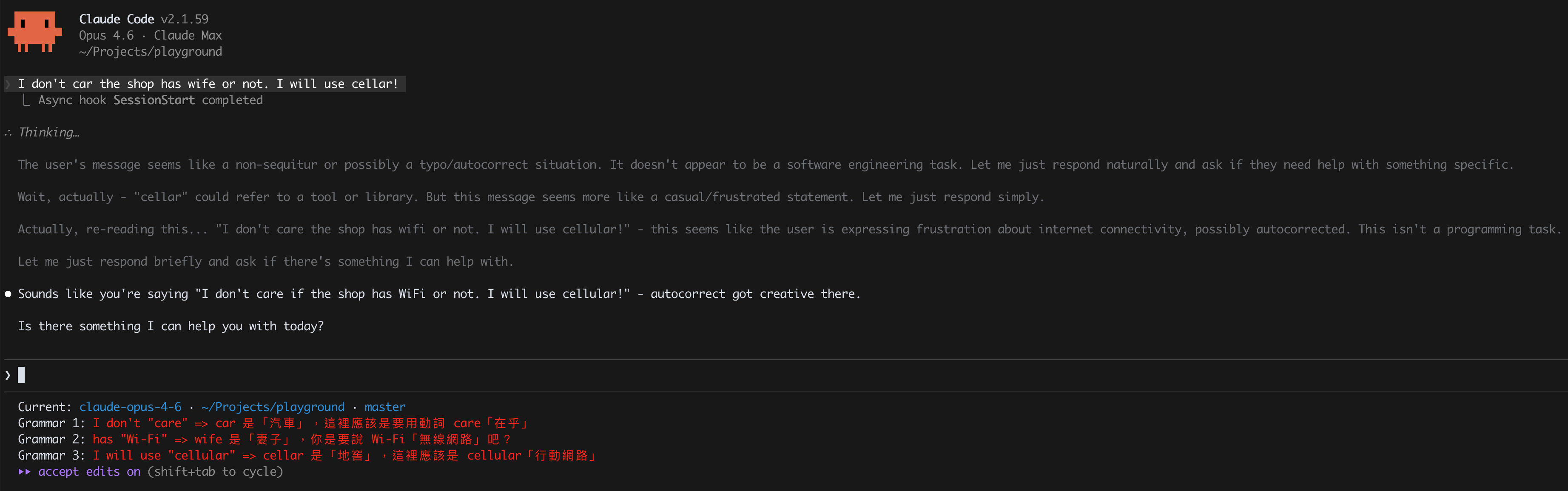
Claude Code Statusline with English Grammar Check example

Run Ad-Hoc Claude Commands Inside Scripts

You can invoke claude as a one-shot CLI tool from hooks, statusline scripts, CI, or anywhere else. The trick is using the right flags to get a clean, isolated call with zero side effects:

cmd = """
    claude
    --model haiku
    --max-turns 1
    --setting-sources ""
    --tools ""
    --disable-slash-commands
    --no-session-persistence
    --no-chrome
    --print
"""

result = subprocess.run(
    [*shlex.split(cmd), your_prompt],
    capture_output=True,
    text=True,
    timeout=15,
    cwd="/tmp",
)

What each flag does:

  • --setting-sources "": don't load hooks (avoids infinite recursion if called from a hook)
  • --no-session-persistence and cwd="/tmp": avoid polluting your current context
  • --tools "": no file access, no bash, pure text in/out
  • --no-chrome: skip the Chrome integration

Multi-Model Second Opinions

You can get independent code reviews or brainstorming input from other model families (Codex, Gemini) without leaving Claude Code. I have two skills for this:

  • magi: Evangelion's MAGI system as a brainstorming panel. Three personas (Scientist/Opus, Mother/Codex, Woman/Gemini) deliberate in parallel
  • second-opinions: Asks Codex and/or Gemini to review code, plans, or docs, then synthesizes their feedback

This works because each model family has different training biases. Claude might miss something Codex catches, and vice versa. It's especially useful for architecture decisions and "what should I build next" brainstorming.


Cloudflare Quick Tunnel (TryCloudflare)

Cloudflare Quick Tunnel (TryCloudflare)

Expose your local server to the Internet with one cloudflared command (just like ngrok). No account registration needed, no installation required (via docker run), and free.

# assume your local server is at http://localhost:3000
docker run --rm -it cloudflare/cloudflared tunnel --url http://localhost:3000

# if your local server is running inside a Docker container
docker run --rm -it cloudflare/cloudflared tunnel --url http://host.docker.internal:3000

ref:
https://developers.cloudflare.com/cloudflare-one/networks/connectors/cloudflare-tunnel/do-more-with-tunnels/trycloudflare/

You will see something like this in console:

+--------------------------------------------------------------------------------------------+
|  Your quick Tunnel has been created! Visit it at (it may take some time to be reachable):  |
|  https://YOUR_RANDOM_QUICK_TUNNEL_NAME.trycloudflare.com                                   |
+--------------------------------------------------------------------------------------------+

Then you're all set.

GKE Autopilot Cluster: Pay for Pods, Not Nodes

GKE Autopilot Cluster: Pay for Pods, Not Nodes

If you're already on Google Cloud, it's highly recommended to use GKE Autopilot Cluster: you only pay for resources requested by your pods (system pods and unused resources are free in Autopilot Cluster). No need to pay for surplus node pools anymore! Plus the entire cluster applies Google's best practices by default.

ref:
https://cloud.google.com/kubernetes-engine/pricing#compute

Create an Autopilot Cluster

DO NOT enable Private Nodes, otherwise you MUST pay for a Cloud NAT Gateway (~$32/month) for them to access the internet (to pull images, etc.).

# create
gcloud container clusters create-auto my-auto-cluster 
--project YOUR_PROJECT_ID 
--region us-west1

# connect
gcloud container clusters get-credentials my-auto-cluster 
--project YOUR_PROJECT_ID 
--region us-west1

You can update some configurations later on Google Cloud Console.

ref:
https://docs.cloud.google.com/sdk/gcloud/reference/container/clusters/create-auto

Autopilot mode works in both Autopilot and Standard clusters. You don't necessarily need to create a new Autopilot cluster; you can simply deploy your pods in Autopilot mode as long as your Standard cluster meets the requirements:

gcloud container clusters check-autopilot-compatibility my-cluster 
--project YOUR_PROJECT_ID 
--region us-west1

ref:
https://cloud.google.com/kubernetes-engine/docs/concepts/about-autopilot-mode-standard-clusters
https://cloud.google.com/kubernetes-engine/docs/how-to/autopilot-classes-standard-clusters

Deploy Workloads in Autopilot Mode

The only thing you need to do is add one magical config: nodeSelector: cloud.google.com/compute-class: "autopilot". That's it. You don't need to create or manage any node pools beforehand, just write some YAMLs and kubectl apply. All workloads with cloud.google.com/compute-class: "autopilot" will run in Autopilot mode.

More importantly, you are only billed for the CPU/memory resources your pods request, not for nodes that may have unused capacity or system pods (those running under the kube-system namespace). Autopilot mode is both cost-efficient and developer-friendly.

apiVersion: apps/v1
kind: Deployment
metadata:
  name: nginx
spec:
  replicas: 3
  selector:
    matchLabels:
      app: nginx
  template:
    metadata:
      labels:
        app: nginx
    spec:
      nodeSelector:
        cloud.google.com/compute-class: "autopilot"
      containers:
        - name: nginx
          image: nginx:1.29.3
          ports:
            - name: http
              containerPort: 80
          resources:
            requests:
              cpu: 100m
              memory: 128Mi
            limits:
              cpu: 500m
              memory: 256Mi

If your workloads are fault-tolerant (stateless), you can use Spot instances to save a significant amount of money. Just change the nodeSelector to autopilot-spot:

apiVersion: apps/v1
kind: Deployment
metadata:
  name: nginx
spec:
  template:
    spec:
      nodeSelector:
        cloud.google.com/compute-class: "autopilot-spot"
      terminationGracePeriodSeconds: 25 # spot instances have a 25s warning before preemption

ref:
https://docs.cloud.google.com/kubernetes-engine/docs/how-to/autopilot-classes-standard-clusters

You will see something like this in your Autopilot cluster:

kubectl get nodes
NAME                             STATUS   ROLES    AGE     VERSION
gk3-my-auto-cluster-nap-xxx      Ready    <none>   2d18h   v1.33.5-gke.1201000
gk3-my-auto-cluster-nap-xxx      Ready    <none>   1d13h   v1.33.5-gke.1201000
gk3-my-auto-cluster-pool-1-xxx   Ready    <none>   86m     v1.33.5-gke.1201000

The nap nodes are auto-provisioned by Autopilot for your workloads, while pool-1 is a default node pool created during cluster creation. System pods may run on either, but in Autopilot cluster, you are never billed for the nodes themselves (neither nap nor pool-1), nor for the system pods. You only pay for the resources requested by your application pods.

FYI, the minimum resources for Autopilot workloads are:

  • CPU: 50m
  • Memory: 52Mi

Additionally, Autopilot applies the following default resource requests if not specified:

  • Containers in DaemonSets
    • CPU: 50m
    • Memory: 100Mi
    • Ephemeral storage: 100Mi
  • All other containers
    • Ephemeral storage: 1Gi

ref:
https://docs.cloud.google.com/kubernetes-engine/docs/concepts/autopilot-resource-requests

Exclude Prometheus Metrics

You may see Prometheus Samples Ingested in your billing. If you don't need (or don't care about) Prometheus metrics for observability, you could exclude them:

  • Go to Google Cloud Console -> Monitoring -> Metrics Management -> Excluded Metrics -> Metrics Exclusion
  • If you want to exclude all:
    • prometheus.googleapis.com/.*
  • If you only want to exclude some:
    • prometheus.googleapis.com/container_.*
    • prometheus.googleapis.com/kubelet_.*

It's worth noting that excluding Prometheus metrics won't affect your HorizontalPodAutoscaler (HPA) which is using Metrics Server instead.

ref:
https://console.cloud.google.com/monitoring/metrics-management/excluded-metrics
https://docs.cloud.google.com/stackdriver/docs/managed-prometheus/cost-controls

Stop Paying for Kubernetes Load Balancers: Use Cloudflare Tunnel Instead

Stop Paying for Kubernetes Load Balancers: Use Cloudflare Tunnel Instead

To expose services in a Kubernetes cluster, you typically need an Ingress backed by a cloud provider's load balancer, and often a NAT Gateway. For small projects, these costs add up fast (though someone may argue small projects shouldn't use Kubernetes at all).

What if you could ditch the Ingress, Load Balancer, and Public IP entirely? Enter Cloudflare Tunnel (by the way, it costs $0).

How Cloudflare Tunnel Works

Cloudflare Tunnel relies on a lightweight daemon called cloudflared that runs within your cluster to establish secure, persistent outbound connections to Cloudflare's global network (edge servers). Instead of accepting incoming connections, your server runs cloudflared to dial out and establish a secure tunnel with Cloudflare. Then it creates a bidirectional tunnel that allows Cloudflare to route requests to your private services while blocking all direct inbound access to your origin servers.

So basically Cloudflare Tunnel acts as a reverse proxy that routes traffic from Cloudflare edge servers to your private services: Internet -> Cloudflare Edge Server -> Tunnel -> cloudflared -> Service -> Pod.

ref:
https://developers.cloudflare.com/cloudflare-one/networks/connectors/cloudflare-tunnel/

Create a Tunnel

A tunnel links your origin to Cloudflare's global network. It is a logical connection that enables secure, persistent outbound connections to Cloudflare's global network (Cloudflare Edge Servers).

  • Go to https://one.dash.cloudflare.com/ -> Networks -> Connectors -> Create a tunnel -> Select cloudflared
  • Tunnel name: your-tunnel-name
  • Choose an operating system: Docker

Instead of running any installation command, simply copy the token (starts with eyJ...). We will use it later.

ref:
https://developers.cloudflare.com/cloudflare-one/connections/connect-networks/deployment-guides/kubernetes/

Configure Published Application Routes

First of all, make sure you host your domains on Cloudflare, so the following setup can update your domain's DNS records automatically.

Assume you have the following Services in your Kubernetes cluster:

apiVersion: v1
kind: Service
metadata:
  name: my-blog
spec:
  selector:
    app: my-blog
  type: NodePort
  ports:
    - name: http
      port: 80
      targetPort: http
---
apiVersion: v1
kind: Service
metadata:
  name: frontend
spec:
  selector:
    app: frontend
  type: NodePort
  ports:
    - name: http
      port: 80
      targetPort: http

You need to configure your published application routes based on your Services, for instance:

  • Route 1:
    • Domain: example.com
    • Path: blog
    • Type: HTTP
    • URL: my-blog.default:80 => format: your-service.your-namespace:your-service-port
  • Route 2:
    • Domain: example.com
    • Path: (leave it blank)
    • Type: HTTP
    • URL: frontend.default:80 => format: your-service.your-namespace:your-service-port

Deploy cloudflared to Kubernetes

We will deploy cloudflared as a Deployment in Kubernetes. It acts as a connector that routes traffic from Cloudflare's global network directly to your private services. You don't need to expose any of your services to the public Internet.

apiVersion: v1
kind: Secret
metadata:
  name: cloudflared-tunnel-token
stringData:
  token: YOUR_TUNNEL_TOKEN
---
apiVersion: apps/v1
kind: Deployment
metadata:
  name: tunnel
spec:
  replicas: 3
  selector:
    matchLabels:
      app: tunnel
  template:
    metadata:
      labels:
        app: tunnel
    spec:
      terminationGracePeriodSeconds: 25
      nodeSelector:
        cloud.google.com/compute-class: "autopilot-spot"
      securityContext:
        sysctls:
          # Allows ICMP traffic (ping, traceroute) to resources behind cloudflared
          - name: net.ipv4.ping_group_range
            value: "65532 65532"
      containers:
        - name: cloudflared
          image: cloudflare/cloudflared:latest
          command:
            - cloudflared
            - tunnel
            - --no-autoupdate
            - --loglevel
            - debug
            - --metrics
            - 0.0.0.0:2000
            - run
          env:
            - name: TUNNEL_TOKEN
              valueFrom:
                secretKeyRef:
                  name: cloudflared-tunnel-token
                  key: token
          livenessProbe:
            httpGet:
              # Cloudflared has a /ready endpoint which returns 200 if and only if it has an active connection to Cloudflare's network
              path: /ready
              port: 2000
            failureThreshold: 1
            initialDelaySeconds: 10
            periodSeconds: 10
          resources:
            requests:
              cpu: 50m
              memory: 128Mi
            limits:
              cpu: 200m
              memory: 256Mi

ref:
https://developers.cloudflare.com/cloudflare-one/networks/connectors/cloudflare-tunnel/configure-tunnels/cloudflared-parameters/run-parameters/

kubectl apply -f cloudflared/deployment.yml

That's it! Check the Cloudflare dashboard, and you should see your tunnel status as HEALTHY.

You can now safely delete your Ingress and the underlying load balancer. You don't need them anymore. Enjoy your secure, cost-effective cluster!